
MetaTrader 4 (commonly known as MT4) is one of the most popular platforms for forex and CFD trading.
It is free to use, beginner-friendly, and packed with powerful tools like charts, indicators, and automated trading options.
If you are new to trading, installing MT4 correctly is the first step.
Let’s walk through the process step by step with examples.
1. Step 1: Choose a Broker
Before downloading MT4, you need to select a broker because MT4 connects to a broker’s server.
- Example: If you sign up with XM Broker, they will provide you with an MT4 download link.
- Other brokers like IC Markets, Pepperstone, or Exness also offer MT4.
Always download MT4 from your broker’s official website to avoid fake or harmful versions.
2. Step 2: Download MetaTrader 4
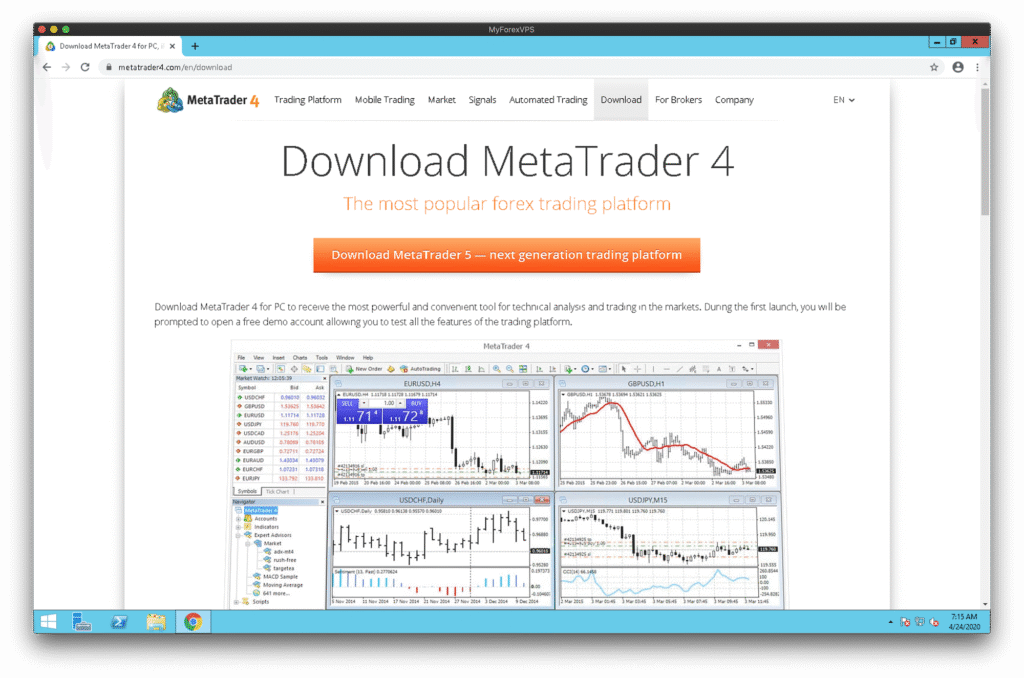
Once you’ve chosen a broker:
- Visit the broker’s official website.
- Look for the Download MT4 option.
- Select your device:
- Windows (PC/Laptop)
- Mac OS
- Android (Google Play Store)
- iOS (App Store)
Example: If you are using Windows, click Download MT4 for Windows and save the setup file to your computer.
3. Step 3: Install MT4 on Your Device
1. For Windows (PC/Laptop)
- Open the downloaded
.exefile. - Click Run when prompted.
- Follow the installation steps by clicking Next.
- Once finished, click Finish and MT4 will open.
2. For Mac
MT4 may require Wine software to run. Many brokers provide detailed Mac installation guides.
3. For Mobile (Android/iOS)
- Open Google Play Store or App Store.
- Search MetaTrader 4.
- Tap Install.
- Once downloaded, open the app.
4. Step 4: Open Your MT4 Account
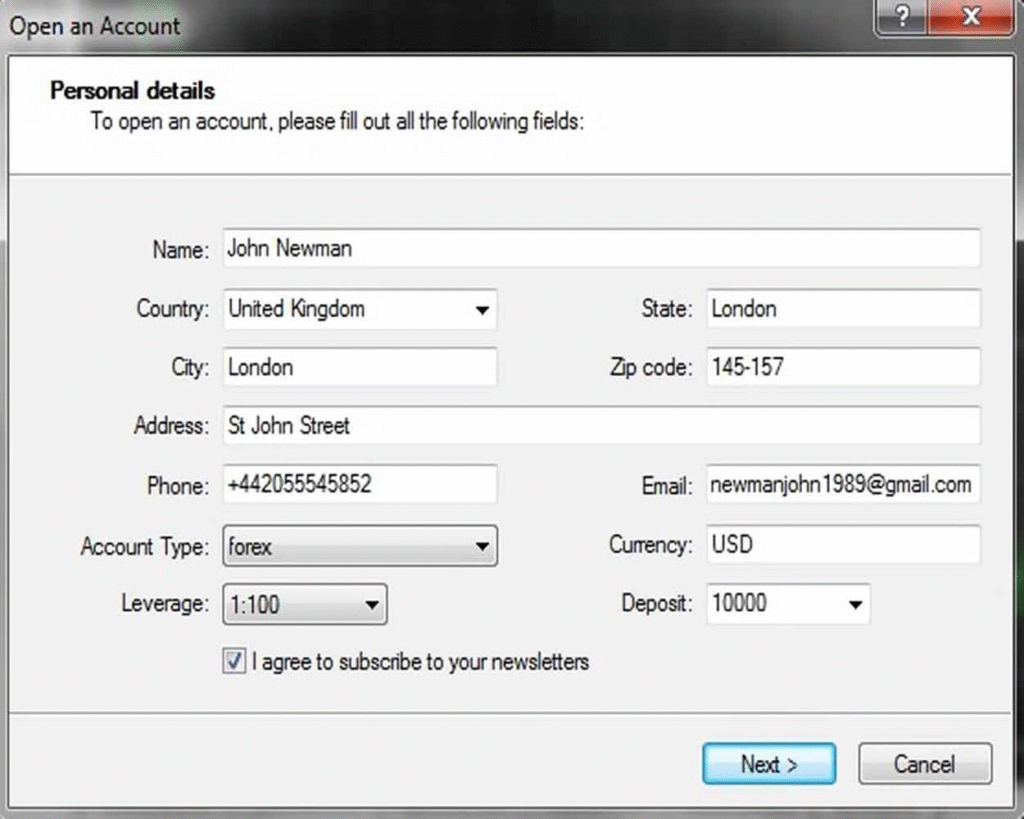
When you first open MT4, it will ask you to log in with your broker account details.
- Enter your Login ID, Password, and Server (your broker will provide this).
- Example:
- Login: 123456
- Password: mysecurepass
- Server: XMGlobal-Demo
If you don’t have a live account, you can create a Demo Account to practice trading with virtual money.
5. Step 5: Explore the MT4 Platform
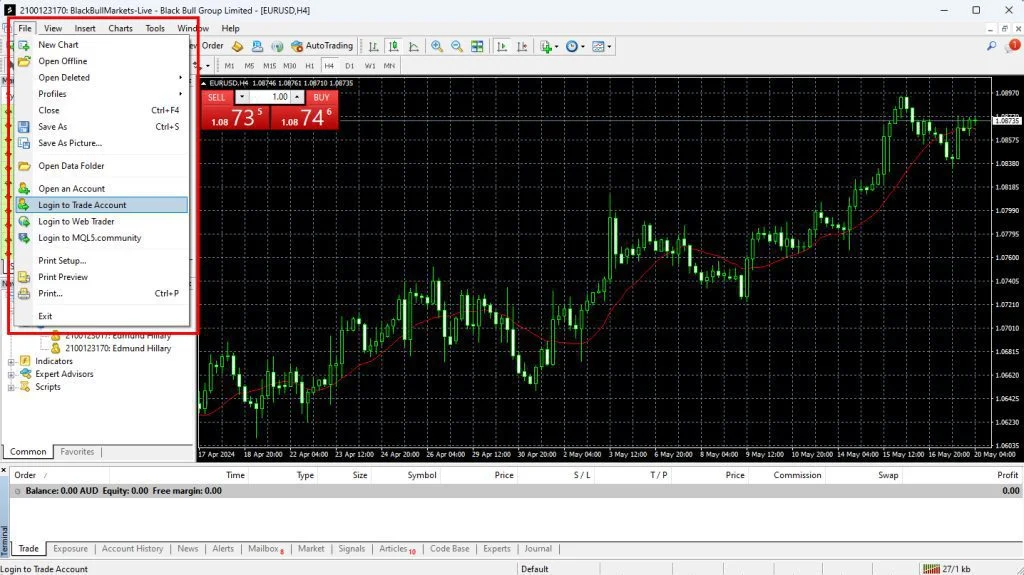
Once logged in, you’ll see the MT4 dashboard.
- Market Watch (left panel): Shows live prices of currency pairs.
- Chart Window (main screen): Displays price movement in candles or bars.
- Navigator (bottom left): Gives access to accounts, indicators, and expert advisors.
- Terminal (bottom): Shows balance, open trades, and history.
Example: If you want to check EUR/USD, right-click in the Market Watch → Select Chart Window → The price chart will appear.
6. Step 6: Place Your First Trade in Metatrader 4
To test MT4:
- Right-click on a currency pair (e.g., EUR/USD).
- Select New Order.
- Choose trade size (lot size) and type (buy/sell).
- Click Buy by Market or Sell by Market.
If you’re on a demo account, you can trade risk-free until you feel confident.
7. Common Issues and Fixes using Metatrader 4
- Problem: Can’t log in?
→ Check your Login ID, Password, and Server. They must match exactly as given by your broker. - Problem: MT4 not showing all pairs?
→ Right-click in Market Watch → Select Show All. - Problem: Platform looks complicated?
→ Start with a demo account and explore features slowly.
8. Final Thoughts
MetaTrader 4 is a reliable, powerful, and easy-to-use trading platform.
By following these steps, you can download, install, and start trading in minutes.
Start with a demo account, learn the tools, and only then move to a live account with real money.
This way, you’ll minimize risks while mastering the platform.
Leave a Reply