
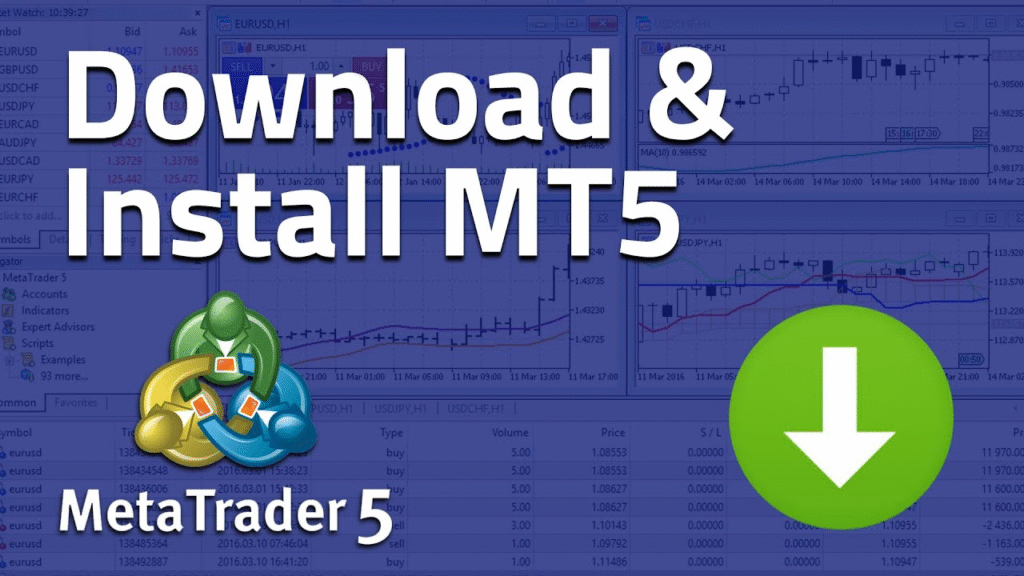
MetaTrader 5 (MT5) is the advanced version of MetaTrader 4.
It offers faster performance, more charting tools, more order types, and the ability to trade not only forex but also stocks, futures, and commodities depending on your broker.
If you are new to trading or switching from MT4, this step-by-step guide will help you download and install MT5 easily.
1. Step 1: Choose a Broker That Supports MT5
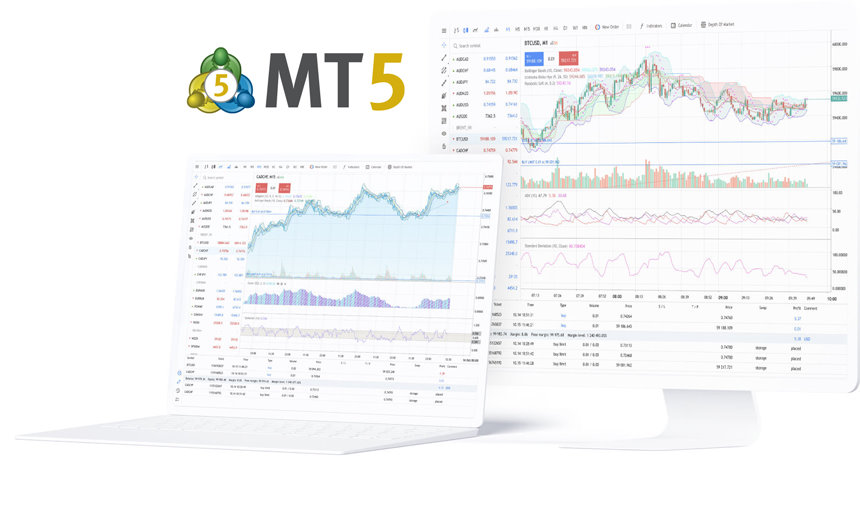
Not all brokers offer MT5, so the first step is to check if your broker provides it.
- Example: Exness, IC Markets, and Pepperstone all support MT5.
- If you sign up with Exness, they will provide you with a direct download link for MT5.
Always download MT5 from your broker’s official website or the official MetaQuotes website to avoid unsafe versions.
2. Step 2: Download MetaTrader 5
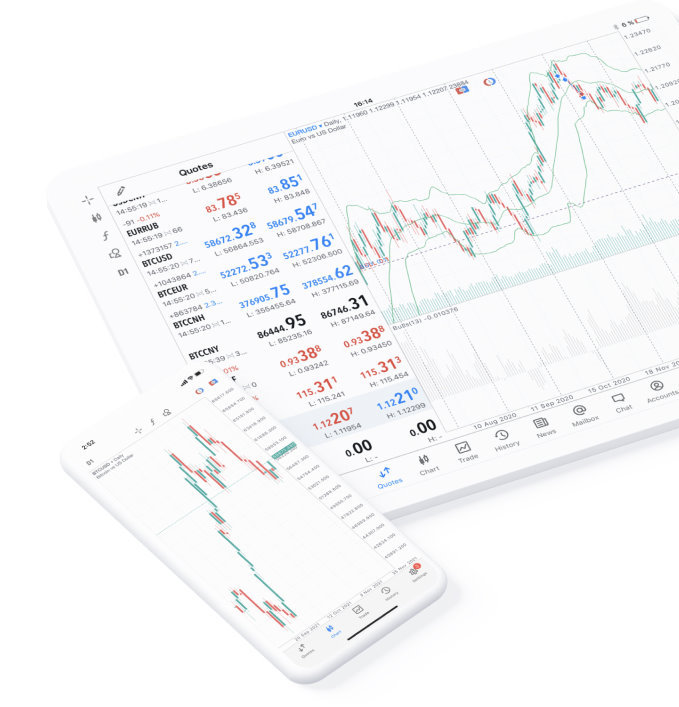
Once you confirm your broker supports MT5, go to their website and look for the MT5 Download option.
You will usually see multiple versions:
- Windows (PC/Laptop)
- Mac OS
- Android (Google Play Store)
- iOS (App Store)
Example: If you are on Windows, click Download MT5 for Windows and save the setup file.
If you use mobile, simply search “MetaTrader 5” in Google Play or App Store and download it.
3. Step 3: Install MT5 on Your Device
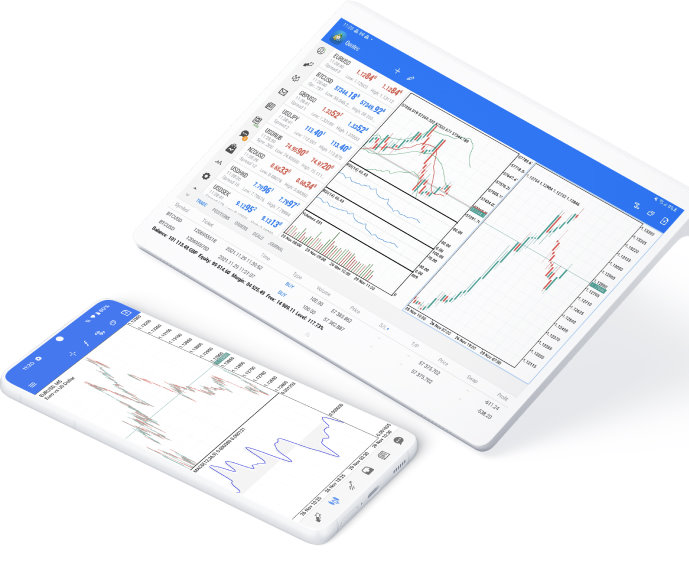
1. For Windows (PC/Laptop)
- Open the downloaded
.exefile. - Click Run when asked.
- Accept the agreement and click Next.
- The installation will take a few seconds.
- Click Finish and MT5 will open automatically.
2. For Mac
MT5 can be installed directly on Mac if your broker provides a Mac version. If not, you may need additional software like Wine.
3. For Mobile (Android/iOS)
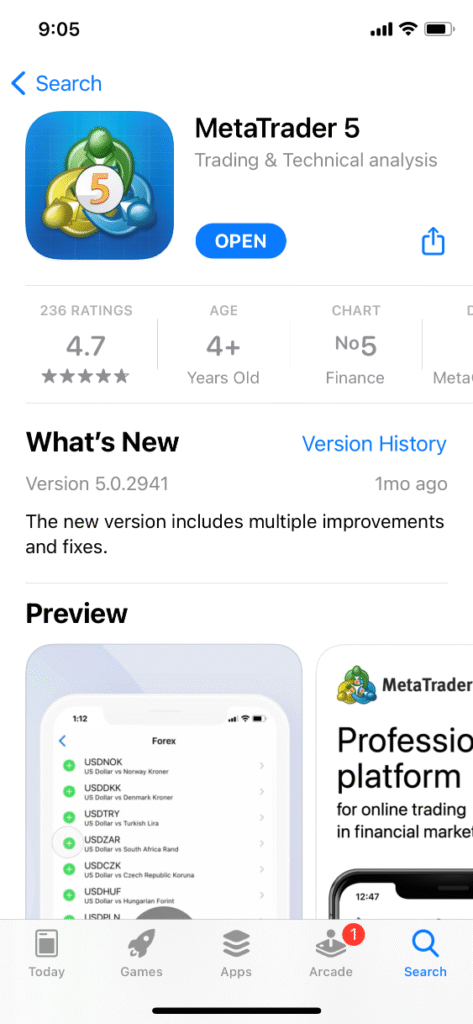
- Open Google Play Store or App Store.
- Search for MetaTrader 5.
- Tap Install.
- Once installed, open the app.
4. Step 4: Log in to Your MT5 Account
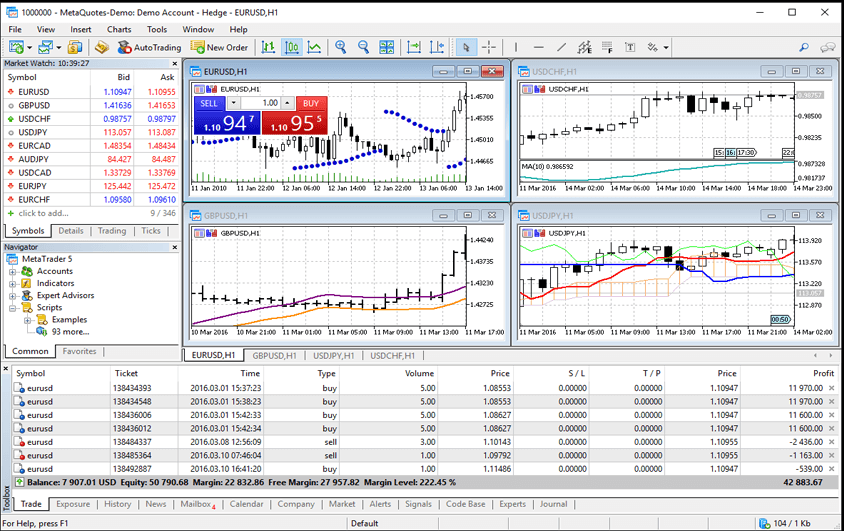
When you first open MT5, you’ll be asked to connect with a broker account.
- Enter your Login ID, Password, and Server Name (provided by your broker).
- Example:
- Login: 789456
- Password: strongpass123
- Server: ICMarkets-MT5
If you don’t have a live account, you can create a Demo Account directly inside MT5 and practice with virtual money.
5. Step 5: Explore the MT5 Interface
Once logged in, you’ll see the MT5 dashboard.
- Market Watch (left panel): Displays live prices of forex pairs, stocks, and other instruments.
- Charts (main screen): Lets you analyze price movements with candlesticks, bars, or line charts.
- Navigator (bottom left): Gives quick access to accounts, indicators, and expert advisors (EAs).
- Toolbox (bottom): Shows balance, active trades, trade history, and news.
Example: If you want to see EUR/USD, right-click in Market Watch → Select Chart Window → The chart opens instantly.
6. Step 6: Place Your First Trade using Metatrader 5
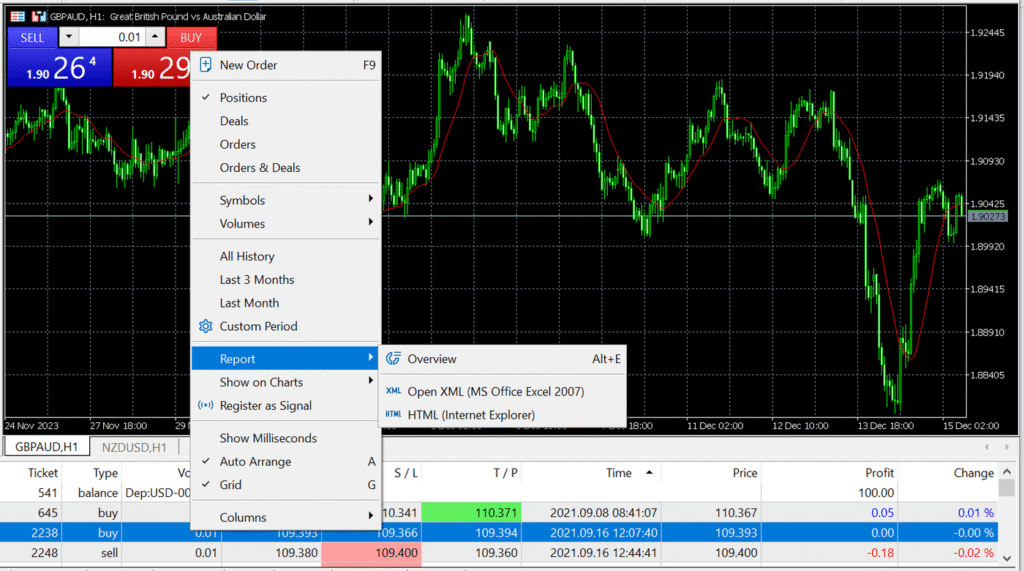
To place a trade:
- Right-click on a trading pair (e.g., GBP/USD).
- Select New Order.
- Enter trade size (lot size).
- Choose order type (Market or Pending).
- Click Buy or Sell.
If you’re using a demo account, this is a safe way to test trading without risking real money.
7. Step 7: Key Benefits of MT5 Over MT4
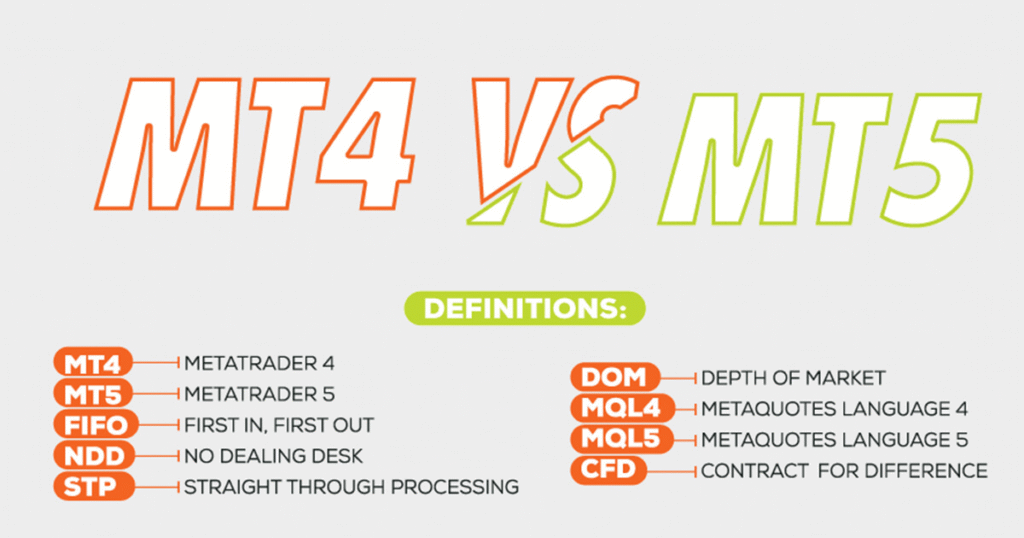
- More timeframes (21 in MT5 vs. 9 in MT4).
- More built-in indicators.
- Depth of Market (DOM) for better order execution.
- Multi-asset support (forex, stocks, futures, commodities).
- Faster processing and improved performance.
Example: If you want to trade Apple stock alongside EUR/USD, MT5 allows it if your broker supports stock trading.
8. Common Issues and Fixes
- Problem: Can’t log in?
→ Recheck your Login ID, Password, and Server details. - Problem: Charts not loading?
→ Ensure you are connected to the internet and logged into the correct server. - Problem: Not all trading instruments showing?
→ Right-click in Market Watch → Click Show All.
9. Final Thoughts
MetaTrader 5 is a modern, powerful platform that suits both beginners and advanced traders.
By downloading and installing MT5 step by step, you’ll be ready to trade currencies, stocks, or commodities within minutes.
Start with a demo account to learn the features, then move to a live account once you are confident.
Leave a Reply